Inline Visuals That Boost Engagement: 5-Step Workflow

You can write the cleanest article in your category and still lose the reader in five seconds. Not because your ideas aren’t sharp. Because you made them work too hard to “see” what you meant. Visuals aren’t decoration here. They’re the thing that turns abstract concepts into decisions.
I learned this the hard way. Back at Steamfeed we published thousands of posts. Depth and breadth worked, but only when visuals did their job. Later, as the only marketer at PostBeyond, I could produce fast, but design handoffs slowed me down. I didn’t need “better art.” I needed simple, reusable visuals that appeared exactly where readers got stuck.
Key Takeaways:
- Define visual roles (hero, explanatory, screenshot) so every image has a job
- Tie placement to H2 snippet openers for clarity and easier scanning
- Standardize alt text, filenames, and captions to prevent SEO/accessibility rework
- Use rules to decide when visuals appear, not taste or last‑minute guesses
- Reserve screenshots for solution sections to reduce buyer uncertainty
- Measure impact with simple signals: time-to-publish, scroll-to-first-visual, and bounce
Visuals Decide Whether Your Article Lands, Not Just How It Looks
Visuals determine comprehension speed by making key ideas visual at the exact decision point. When placed right after section openers, they reinforce the “answer” readers came for. For example, a hero sets the narrative, an inline diagram clarifies a model, and a screenshot proves the product can actually do it.

The roles that change comprehension: hero, explanatory, screenshot
Give images a job before you open your editor. The hero sets the narrative tone, think positioning, not stock photo. The explanatory visual lives where a reader might stall: frameworks, multi-step logic, new terminology. The product screenshot goes where the buyer decides, usually in solution sections that connect problem to capability.
Teams get into trouble when visuals fight each other. You don’t need a decorative hero and a redundant diagram and a vague screenshot. You need one visual that carries meaning at each key moment. Start with two to three assets per article: hero for story, diagram for clarity, screenshot for proof. Simple. Repeatable. Fast to ship.
What is an inline visual and when should you use one?
Inline visuals sit adjacent to the sentence that benefits from seeing, not just reading. Use them when you introduce a model, present branching logic, or show a product action you want the reader to believe. Don’t use them when the text is self-evident or the image repeats the headline. Redundancy slows readers down.
Here’s the nuance most teams miss: align visuals with snippet-ready openers. Open each H2 with a 40–60-word direct answer; place the visual immediately after it. This pairing mirrors how humans scan and how machines cite. It’s efficient. It’s also backed by learning science showing visuals improve retention and understanding (studies from eLearning researchers).
Ready to skip the theory and see the workflow done for you? Try Oleno For Free.
Treat Visuals As System Components You Can Reuse And Place Predictably
Treat visuals like templates with rules, not one-off art with opinions. Reusable patterns give you speed, consistency, and less debate. The outcome is predictable placement, stable quality, and fewer late edits. For example, one hero template, two explanatory styles, and a repeatable screenshot pattern cover most needs.

What traditional handoffs miss
The classic dance goes like this: writer guesses, designer reinterprets, editor fixes alt text at the end. Nobody’s wrong. The system is. Each handoff introduces drift, style changes, timing delays, and metadata gaps. You ship later, and you still miss the moment the reader needed help.
The fix isn’t “work harder.” It’s compressing decisions into a small library of patterns with deterministic rules. When patterns carry brand tokens (color, typography, stroke weight) and copy fields (title, labels, captions), you eliminate subjective back-and-forth. Suddenly, the team argues less and publishes more. It feels calm. It’s just design ops done right.
Deterministic rules beat taste debates
Write rules you can run every time. One hero per article. Two inline explanatory visuals tied to sections that introduce a framework or decision. Screenshots appear in solution sections, not thought leadership. Diagrams show up when paragraphs contain numbered logic or new models. These are if/then rules, not vibes.
Who decides? Writers pick roles per section using a checklist. A system operator tags and places assets. Designers build new templates only when the pattern library can’t express a concept. That split keeps velocity high and protects brand consistency. And yes, rules will feel rigid until you see how much faster you ship. Then they feel like freedom. Research on visual attention backs this kind of pattern-first approach too (peer-reviewed HCI work on content design).
The Hidden Costs Draining Your Visual Production Budget
Hidden visual costs show up as delays, rework, and credibility leaks. They’re easy to ignore because they’re distributed across people and tools. Add them up and you’ll find real dollars and missed pipeline. Let’s put numbers to it so this isn’t theoretical.
Editing hours lost to design turnarounds
Let’s pretend you ship 20 posts a month. Each needs two visuals. If every designer round-trip costs 45 minutes, you’re at 30 hours before publish. Add a late brand tweak? Another 5 hours. Then those “one quick changes” cascade through filenames, alt text, and captions. You didn’t plan for that, yet you pay it every time.
Shift to rules and templates and you change the math. Writers select roles, attach pattern-based assets, and move to QA. Designers invest once in templates, not per-post one-offs. Those reclaimed hours go to systemic improvements, new diagrams, better screenshot styles, or education for the team. That’s how scale starts.
SEO and accessibility fines you pay later
Retro-fitting alt text, filenames, and captions is a silent tax. You lose crawl clarity, screen reader context, and snippet eligibility. It’s also tedious work that invites errors, missed hyphens, vague alt text, inconsistent case. Do that at volume and quality drifts.
A simple formula helps: filenames that encode keyword, section, and role; alt text that describes the action and object with brand context; captions that add meaning, not repetition. Lock this into your workflow and the “fine” goes away. You may also see engagement lift, visual content consistently correlates with higher attention and shares (visual content statistics roundup).
Still losing hours to image wrangling every week? Shift the burden to software. Try Generating 3 Free Test Articles Now.
The Pain Of Shipping Bare Pages Or Off-Brand Images
The worst feeling? Publishing a strong piece with weak visuals. It lands flat. Engagement dips. The team knows it. A close second is the off-brand graphic that sneaks through, wrong colors, odd typography, or a stale screenshot. Credibility takes a hit you rarely measure directly but absolutely feel later.
The 3pm scramble before publish
We’ve all done it. It’s 3pm, the post goes live at 4, you hunt stock, crop something, paste, and pray. It rarely fits. The spacing is off. The tone clashes. You ship anyway because deadlines don’t care. Then you spend the next day fixing filenames, alt text, and layout. It’s a headache.
Here’s the better approach: pre-approved inline patterns in your CMS. Writers pick the pattern, attach the asset, move on. Save net-new design for launches and cornerstone pieces, not Tuesday’s explainer. And when your product solves the problem, show it where the decision happens. Inline screenshots in solution sections reduce friction. Visual learning isn’t a myth, people scan images first (roundup of visual learning facts). Make that scan useful.
A 5-Step Workflow To Ship Purposeful Inline Visuals
You don’t need a bigger design team. You need a five-step workflow that defines roles, codifies placement, standardizes metadata, and validates before publish. These steps turn visuals from a taste debate into a repeatable system. You’ll ship faster and look more consistent. Let’s walk it.
Step 1: Define roles and build a small asset library
Start by naming the roles your visuals play: hero, explanatory diagram, annotated screenshot. Then build one template per role. The hero carries positioning; the diagram explains logic; the screenshot proves capability. That’s 80% of use cases. Keep it small on purpose. If everything is allowed, nothing is consistent.
Centralize your brand tokens, colors, marks, typography, grid. Tag example images with role and topic keywords so writers can find the right fit fast. This shifts the workflow from image hunting to role selection. It feels lighter because it is. And it scales, because roles are how teams coordinate without meetings.
Step 2: Write placement rules tied to H2s and snippet blocks
Placement follows reading behavior. Your H2 opener gives the 40–60-word answer; the visual comes immediately after. Do this wherever you introduce a framework, model, or decision. It’s how humans scan, and it’s how assistants “cite” sections. Pair answer with image, then elaborate in the body.
Screenshots follow a separate rule: place them in solution or how-to sections where buyers decide. Reserve tutorial pages for more visuals; most articles don’t need more than three. Write the rules down. Treat them like a style guide. These aren’t guidelines; they’re the default.
Step 3: Tag assets and match to sections programmatically
Asset tags make matching automatic. Tag screenshots with feature names, verbs, and intents (e.g., “Generate Proposal,” “Approve Workflow,” “Reduce Rework”). Tag diagrams with model types (funnel, matrix, loop). Then match sections using semantic similarity, if the H2 or opener mentions a feature verbatim, that asset wins priority.
When there’s no exact match, fall back to concept match. The goal isn’t perfection; it’s reducing manual decision-making so editors can focus on narrative. Programmatic matching prevents the “oops wrong screenshot” problem that creeps in under deadline. Less guesswork. Fewer revisions.
Step 4: Standardize filenames, alt text, and captions
Metadata is where quality drifts unless you pin it down. Use a filename formula: primarykeyword_section-role_shortdesc.webp. Alt text: action verb + object + intent + brand (e.g., “Filter proposals by close date to prioritize follow-ups in Proposify”). Captions: one sentence that adds context, not duplication.
Keep formats modern (WebP/AVIF), compress appropriately, and lazy-load below the fold. Don’t overthink it. Consistency beats cleverness here. When metadata is predictable, teams stop arguing and accessibility improves for everyone. That’s the win.
Step 5: Run a visual QA checklist and measure
Make a one-page QA that checks role coverage, placement after snippet, brand tokens, contrast, and alt text presence. Then measure three signals: time-to-publish, scroll depth to first visual, and design turnaround time. You want proof that visuals reduce friction, not just nice-looking posts.
If metrics stall, adjust placement or swap the asset type. Maybe the diagram is better as an annotated screenshot. Maybe the hero is too abstract. Use the signals to tune the system, not to shame the team. That’s how you get compounding gains without adding headcount.
How Oleno Automates Inline Visuals At Scale
Oleno systematizes everything above so your team doesn’t grind through manual steps. Visual roles, placement rules, screenshot matching, and metadata all run through a single pipeline. For example, hero and inline visuals are generated and placed intentionally, then validated before publish. It’s predictable and on-brand without extra meetings.
Visual Studio generates role-based images and screenshots
Oleno’s Visual Studio pulls your brand colors, marks, and style references from a centralized asset library, then generates one hero and two to three inline images per article. It also surfaces tagged product screenshots for the right sections. You don’t chase designers for routine assets. You don’t settle for generic stock.
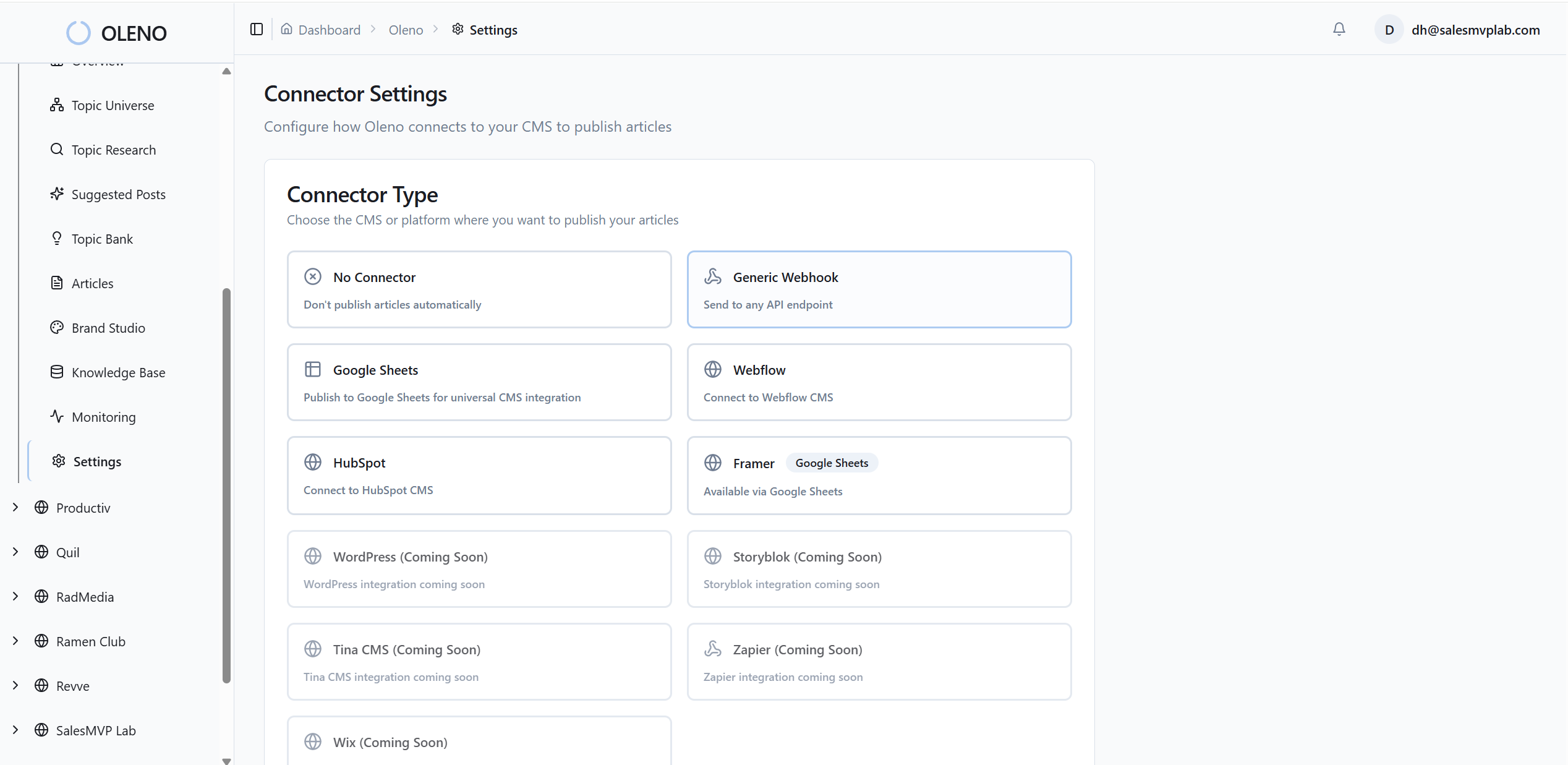
Because Visual Studio treats visuals as first-class output, it maintains a consistent look across articles. Solution sections are prioritized for product visuals, where proof does the most work. You focus on the story. The system handles the structure.
Semantic matching places product visuals in the right sections
Oleno uses semantic similarity to map screenshots to the section that mentions or implies the feature. When a section covers “Approval Workflows,” that screenshot is placed right after the snippet opener, where readers decide if the capability fits. This is where many teams lose momentum. Oleno makes it default.
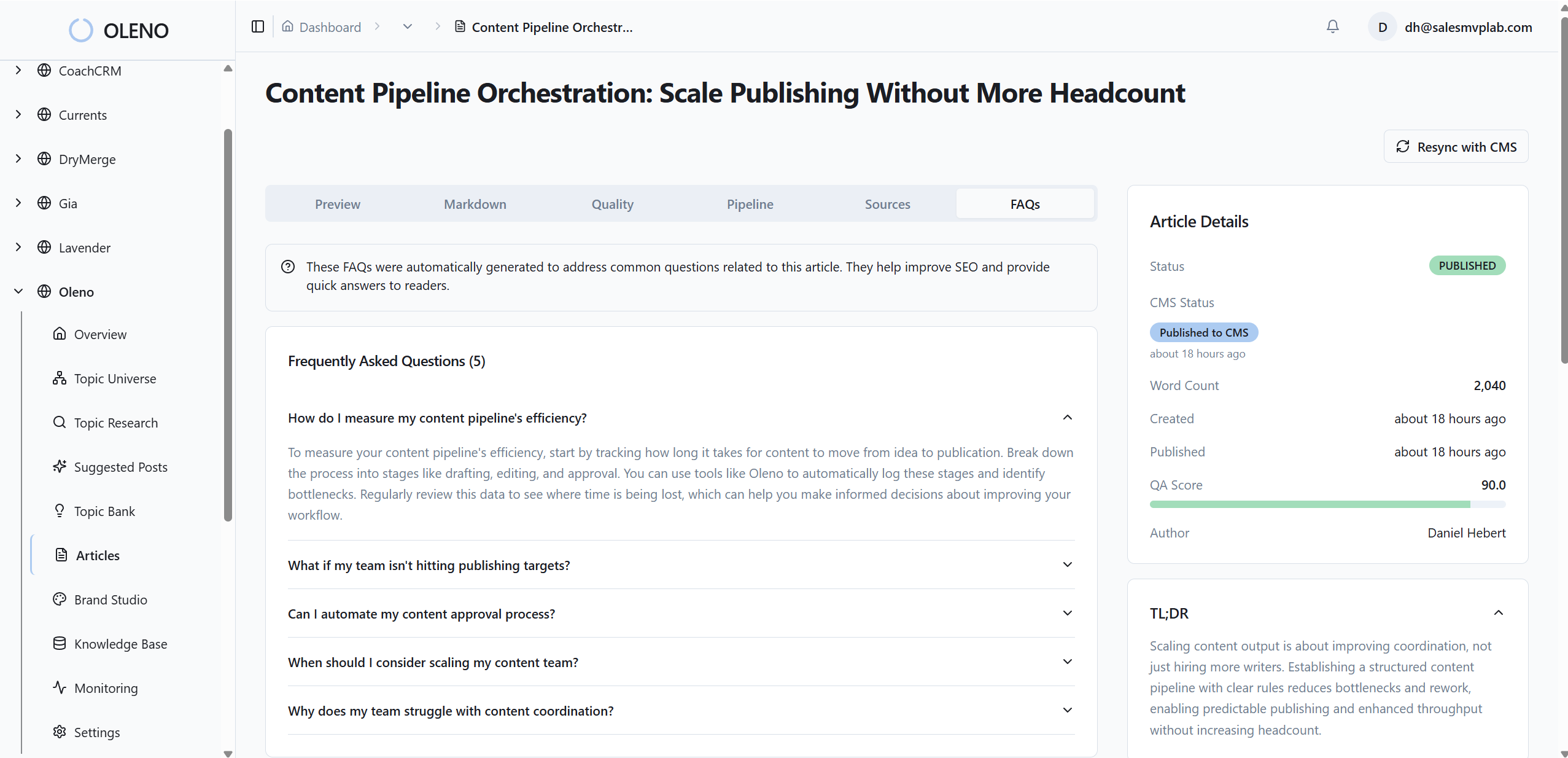
That mapping pulls directly from your tagged asset library, so the right screenshot shows up without guessing. It’s the small placement decision that quietly reduces cognitive load and increases conversion. Less friction. More clarity.
Alt text and filenames are created automatically
Oleno generates alt text, SEO-friendly filenames, and appropriate aspect ratios automatically. That removes the metadata tax your editors currently pay at the end. It also protects accessibility and reduces post-publish cleanup. Small things, big impact.
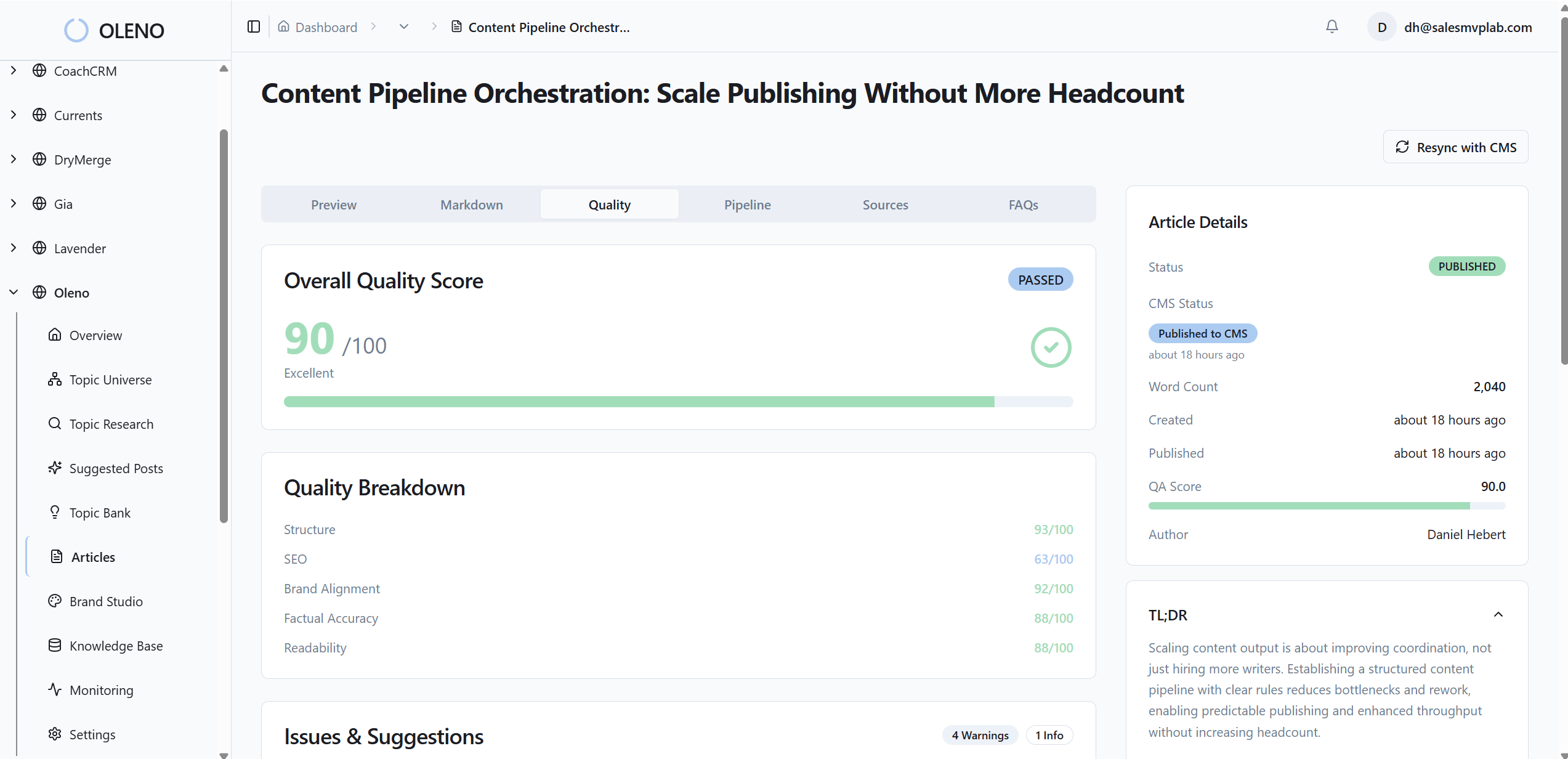
These automation choices tie directly back to cost. Those 30 hours of design turnarounds? They shrink. The silent SEO fines from sloppy metadata? They stop appearing. The credibility leak from off-brand visuals? QA catches it before it ships. Oleno makes these outcomes repeatable.
If you want this handled end to end, text, visuals, and placement rules, without adding headcount, it’s time. Try Using An Autonomous Content Engine For Always-On Publishing.
Conclusion
You don’t need more images. You need visuals with a job, placed by rule, and validated before publish. Do that, and your best ideas land faster, without the 3pm scramble, the metadata cleanups, or the off-brand surprises. Whether you build the five-step system yourself or let Oleno run it, the outcome is the same: clarity that compounds.
About Daniel Hebert
I'm the founder of Oleno, SalesMVP Lab, and yourLumira. Been working in B2B SaaS in both sales and marketing leadership for 13+ years. I specialize in building revenue engines from the ground up. Over the years, I've codified writing frameworks, which are now powering Oleno.
Frequently Asked Questions